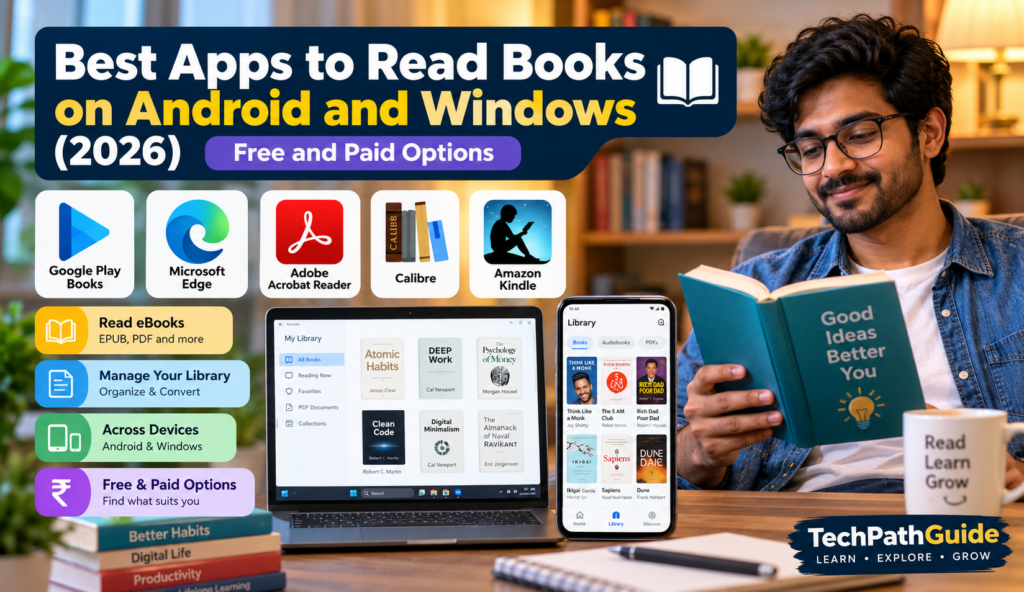
Do you enjoy reading ebooks, novels, study materials, or PDF documents on your phone or computer? The right reading app can make reading more comfortable, help you organise your digital library, and make it easier to continue reading wherever you are.
There are many options available, from free ebook readers to apps for purchased books and tools for reading PDF documents.
In this guide, we’ll explore some useful apps for Android phones and Windows computers and explain which option is best for different reading needs.
1. Google Play Books
Google Play Books is a convenient choice for readers who want to discover ebooks and audiobooks. You can purchase individual books, read supported books on different devices, and upload compatible PDF or EPUB files to your library.
Best for: People who want to discover books and keep their digital reading library organised.
Advantages
- Explore ebooks and audiobooks.
- Customise font size and reading appearance for supported books.
- Upload supported PDF and EPUB files.
- Download supported books for offline reading.
Things to consider
- Some books must be purchased.
- Features and availability depend on the book and device.
- Some publishers restrict downloading or other uses.
Official link: https://play.google.com/store/books
2. Microsoft Edge
Microsoft Edge is a web browser with a built-in PDF reader. If you already use Edge on Windows, you may not need to install another application to read PDF documents.
Its PDF tools support reading and useful activities such as highlighting and annotating, depending on the available features.
Best for: Reading PDFs, manuals, online documents, and study materials on Windows.
Advantages
- Built into the browser.
- Opens many PDF documents directly.
- Useful for reading online documents.
- Includes PDF annotation features.
Things to consider
- It is primarily a browser and PDF reader, not a dedicated ebook library manager.
- It may not provide the same reading experience as a specialised EPUB reader.
Official link: https://www.microsoft.com/edge
3. Adobe Acrobat Reader
Adobe Acrobat Reader is a popular option for opening and working with PDF documents. It is useful for people who read business documents, digital manuals, educational materials, and other PDFs.
The free Reader application supports viewing, searching, printing, commenting, and annotating PDFs. Some advanced features require a paid plan.
Best for: PDF documents, forms, manuals, and study materials.
Advantages
- Available for Windows and mobile devices.
- Supports PDF search and annotation.
- Useful for business and educational documents.
- Provides tools for comments and document review.
Things to consider
- Some advanced editing and conversion tools are paid.
- It is primarily a PDF reader rather than a complete ebook collection manager.
Official link: https://www.adobe.com/in/acrobat/pdf-reader.html
4. Calibre
Calibre is a free, open-source ebook management application for Windows and other desktop operating systems. It helps users organise ebook collections, manage metadata, and convert supported ebook formats.
It is particularly useful if you have many ebooks stored on your computer.
Best for: Managing a personal ebook collection on Windows.
Advantages
- Free and open source.
- Organises ebook libraries.
- Supports many ebook formats.
- Provides ebook conversion and metadata management tools.
Things to consider
- Its interface may take some time to learn.
- It is more focused on desktop ebook management than a simple mobile reading experience.
Official link: https://calibre-ebook.com/
5. Amazon Kindle
The Kindle reading ecosystem lets readers access Kindle books on supported devices and applications. It is useful if you already purchase books from the Kindle Store.
Kindle reading options depend on the device, operating system, and application availability. Check Amazon’s current requirements before installing a desktop application.
Best for: Readers who buy and read Kindle ebooks.
Advantages
- Access to books purchased through the Kindle Store.
- Reading progress and other features may sync across supported devices.
- Offers a large catalogue of digital books.
Things to consider
- Many titles require payment.
- Kindle books may have digital rights restrictions.
- Desktop app compatibility can change, so check the official support page.
Official link: https://www.amazon.in/kindle-dbs/fd/kcp
Comparison: Which Reading App Is Best?
| App | Best use | Cost |
|---|---|---|
| Google Play Books | Discovering and reading ebooks | Free app; some books are paid |
| Microsoft Edge | Reading PDF documents on Windows | Free |
| Adobe Acrobat Reader | Reading and annotating PDFs | Free basic reader; some advanced tools are paid |
| Calibre | Managing an ebook collection on Windows | Free and open source |
| Amazon Kindle | Reading books from the Kindle Store | Free app; many books are paid |
Prices, supported devices, and features can change. Check the official website before downloading or purchasing.
Which App Should You Choose?
If you want to read free PDF files
Start with Microsoft Edge on Windows or Adobe Acrobat Reader if you need additional PDF tools.
If you want to manage many ebooks
Try Calibre. It is particularly useful for organising books stored on your computer.
If you want to purchase and read digital books
Compare Google Play Books and Amazon Kindle. Check book prices, regional availability, and device compatibility before purchasing.
If you read on both Android and Windows
Consider your preferred reading ecosystem. Google Play Books supports reading on Android and through a web browser on compatible computers. For personal files, check which formats each app supports and how your reading progress is synchronised.
Tips for a Better Digital Reading Experience
- Choose a comfortable font size: Adjust the text to reduce eye strain.
- Use bookmarks: Make it easier to return to the right page.
- Organise your library: Keep books in folders or collections.
- Check offline access: Download supported books before travelling.
- Protect your eyes: Take regular breaks during long reading sessions.
- Download safely: Use official websites and trusted app stores.
- Respect copyright: Download books legally and follow the publisher’s terms.
Frequently Asked Questions
Which is the best free ebook reader for Windows?
Calibre is a useful free option for managing ebooks. Microsoft Edge is convenient for PDFs, while the best choice for other formats depends on your reading preferences.
Can I read ebooks on Android for free?
Yes. You can use compatible reading apps to open supported files you already own or access legally available free ebooks. Some books and services require payment.
What is the difference between PDF and EPUB?
PDF usually preserves a fixed page layout, making it useful for manuals and documents. EPUB is designed to adapt text to different screen sizes, which can make it more comfortable for reading novels and other text-heavy books.
Can I read books on both Android and Windows?
Yes, depending on the app and book format. Some services synchronise libraries and reading progress across supported devices. For local files, you may need to transfer the files or use a supported cloud service.
Final Verdict
For PDF documents, Microsoft Edge and Adobe Acrobat Reader are useful choices. For managing an ebook collection on Windows, Calibre is worth trying. If you want to purchase digital books and read them across supported devices, compare Google Play Books and Amazon Kindle.
The best reading app depends on the type of books you read, the devices you use, and whether you prefer free files or purchased content.
Disclaimer: This article is for informational purposes. App features, supported devices, availability, and pricing may change. Check the official product websites for the latest information.