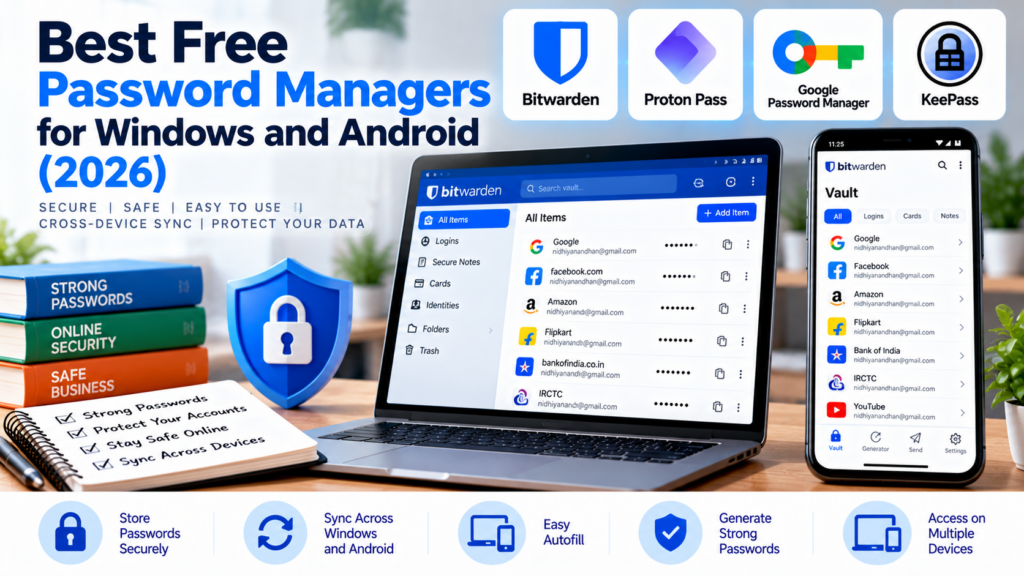
Do you use different passwords for Gmail, banking websites, social media, shopping apps, and other online accounts? Remembering every password can be difficult. Reusing the same password across multiple accounts can also increase your security risk.
A password manager helps solve this problem by storing your login details in an encrypted vault. Instead of remembering dozens of passwords, you primarily need to remember one strong master password or use another supported method to unlock your vault.
The good news is that you do not necessarily need to pay for a password manager. Several free options work on Windows computers and Android phones.
In this guide, we’ll compare four useful options: Bitwarden, Proton Pass, Google Password Manager, and KeePass with a compatible Android app. We’ll explain their advantages, limitations, and which one may suit your needs.
Quick Comparison: Best Free Password Managers
| Password Manager | Best For | Windows Support | Android Support | Main Advantage |
|---|---|---|---|---|
| Bitwarden | Most users | Yes | Yes | Free syncing across devices |
| Proton Pass | Privacy-conscious users | Yes | Yes | Password management with email aliases |
| Google Password Manager | Chrome and Android users | Through Google Chrome | Built into supported Android experiences | Convenient and simple to use |
| KeePass + KeePassDX | Users who prefer a local vault | Yes | Yes, through a compatible app | Control over the encrypted database file |
Our quick recommendation: Bitwarden is the best starting point for most people who want a dedicated password manager on both Windows and Android. Proton Pass is a good alternative for people interested in privacy features. Google Password Manager suits users who primarily use Chrome and Android, while KeePass is worth considering if you prefer to manage your own encrypted password database.
Free-plan features can change, so check the provider’s current offering before signing up.
1. Bitwarden — Best Free Password Manager for Most Users
Bitwarden is a password manager with applications for Windows, Android, browsers, and other platforms. It can store passwords and other sensitive items in an encrypted vault and help fill login forms.
Its free individual plan includes unlimited password storage and access across unlimited devices, making it especially useful for someone who wants to use the same password vault on a computer and phone.
Key Features
- Store passwords and other supported vault items.
- Generate strong, unique passwords.
- Autofill saved logins in supported browsers and apps.
- Synchronize your vault across Windows and Android.
- Use browser extensions and desktop or mobile applications.
- Import passwords from compatible password managers.
Advantages
- A useful free plan for everyday personal use.
- Access your vault on multiple devices.
- Open-source software and published security information.
- Password generation helps you avoid reusing passwords.
- Suitable for people who use both computers and smartphones.
Limitations
- Some advanced features require a paid plan.
- You need to protect your account credentials and recovery options carefully.
- New users may need time to learn how to import passwords and configure autofill.
Who Should Choose Bitwarden?
Choose Bitwarden if you want one dedicated password manager for your Windows computer and Android phone without paying for a subscription.
For example, you can save a website password on your computer and access the same saved login on your Android phone after synchronization.
Official website: Bitwarden
2. Proton Pass — Best Alternative for Privacy-Focused Users
Proton Pass is a password manager from Proton. It stores logins and other supported information in an encrypted vault and offers applications for desktop computers, Android devices, and web browsers.
Its free plan includes unlimited logins and devices, a password generator, passkey support, and a limited number of hide-my-email aliases.
Email aliases can help protect your main email address when signing up for websites and services that support this workflow.
Key Features
- Store unlimited logins on the free plan.
- Access passwords across supported devices.
- Generate passwords.
- Autofill supported websites and applications.
- Store and use supported passkeys.
- Create hide-my-email aliases within the free-plan limit.
Advantages
- Free access to core password-management features.
- Supports Windows and Android.
- Includes useful email privacy features.
- Open-source applications and published security information.
- Suitable for people who want password management and email privacy tools together.
Limitations
- Some advanced features, such as unlimited email aliases and additional sharing features, require a paid plan.
- The available features differ between free and paid subscriptions.
- You should check the current plan details before relying on a specific feature.
Who Should Choose Proton Pass?
Proton Pass is worth considering if privacy is important to you and you want to manage passwords on both Windows and Android.
It is also useful if you want to use email aliases to reduce exposure of your main email address when registering for online services.
Official website: Proton Pass
3. Google Password Manager — Best for Chrome and Android Users
Google Password Manager is a convenient option for people who already use Google Chrome and Android.
It can save passwords, generate stronger passwords, and help autofill login details on supported websites and apps. Passwords can be associated with your Google Account and made available across supported devices when the relevant synchronization settings are enabled.
Unlike a separate password manager, it fits naturally into Google’s browser and Android ecosystem.
Key Features
- Save passwords for websites and supported applications.
- Generate strong passwords.
- Autofill saved credentials.
- Use saved passkeys on supported devices and services.
- Check for certain password security issues.
- Access saved passwords through supported Google experiences.
Advantages
- Convenient for existing Chrome and Android users.
- No separate paid subscription is required for its core password-management features.
- Minimal setup for users already signed in to their Google Account.
- Works well for everyday website and app logins.
Limitations
- It is closely connected to Google’s ecosystem.
- The experience may be less convenient if you regularly use several browsers or different platforms.
- Its features and settings differ from those of dedicated password managers.
- You should protect your Google Account carefully because it can be used to access synchronized information.
Who Should Choose Google Password Manager?
Choose Google Password Manager if you mainly use Google Chrome on Windows and an Android phone and want a simple way to save and autofill passwords.
If you want more flexibility across different browsers and platforms, compare it with Bitwarden or Proton Pass before deciding.
Official website: Google Password Manager
4. KeePass — Best for Users Who Want to Manage Their Own Password Database
KeePass is a free, open-source password manager that stores your passwords in an encrypted database file.
Instead of requiring a provider’s cloud account for its basic storage model, KeePass gives you control over the database file. You can keep it locally and decide how to back it up or make it available on another device.
KeePass itself is primarily a Windows application. For Android, compatible third-party applications include KeePassDX and KeePass2Android. These are separate applications, so check their features and download them from their official or trusted distribution sources.
Key Features
- Store passwords in an encrypted database.
- Protect the database with a master password.
- Generate strong passwords.
- Organize login entries into groups.
- Keep a local copy of your database.
- Open compatible KeePass database files with supported Android applications.
Advantages
- Free and open-source.
- Gives you control over your password database file.
- Does not require a KeePass cloud account for local storage.
- Useful for users who prefer a local-storage approach.
- Compatible Android apps are available.
Limitations
- Synchronization between Windows and Android is not as automatic as it is with cloud-based password managers.
- You need a safe backup and synchronization plan.
- You must manage access to the database file yourself.
- You need to choose and maintain a compatible Android application.
Who Should Choose KeePass?
KeePass is a good option for technically confident users who prefer to control where their password database is stored.
If you want automatic synchronization with minimal setup, Bitwarden or Proton Pass will generally be easier to use.
Official websites: KeePass and KeePassDX
Which Password Manager Should You Choose?
The right choice depends on your devices, preferences, and how much setup you want to manage.
| Your Requirement | Recommended Option | Why? |
|---|---|---|
| Free password syncing between Windows and Android | Bitwarden | Supports unlimited devices on its free individual plan |
| Password manager with email privacy features | Proton Pass | Includes hide-my-email aliases on the free plan |
| Simple password saving in Chrome and Android | Google Password Manager | Integrated into supported Google experiences |
| Local encrypted database under your control | KeePass with a compatible Android app | You control the database file and its backups |
| Easiest starting point for most users | Bitwarden | Dedicated apps, browser extensions, and cross-device access |
Our overall pick is Bitwarden for most users who want a dedicated free password manager on both Windows and Android.
However, Google Password Manager may be sufficient if you only need basic password saving within Chrome and Android. KeePass is more appropriate for people comfortable managing their own encrypted database and backups.
How to Start Using a Password Manager Safely
Follow these steps when setting up your chosen password manager.
Step 1: Download from an Official Source
Visit the provider’s official website or use a trusted application store. Avoid modified applications, unofficial downloads, and cracked versions.
Step 2: Create Your Account or Encrypted Vault
Depending on the tool, you may create an account or a local encrypted database.
For an account-based service, protect the account with a strong password and enable an additional authentication method when available.
For a local database, choose a strong master password and create a reliable backup.
Step 3: Set a Strong Master Password
Use a long, unique passphrase that you do not use for any other account.
Do not use your name, birth date, phone number, or a familiar password that you have already used elsewhere.
Step 4: Import Existing Passwords Carefully
If you have passwords saved in a browser or another password manager, check whether your chosen application supports importing them.
Password exports are often stored in readable files. If you export your passwords, keep the file private and delete it securely after a successful import, following the export tool’s guidance.
Step 5: Enable Autofill Carefully
Configure autofill for your supported browsers and Android apps.
Before accepting an autofill suggestion, check that the website address is correct. Be especially careful with banking, email, and other important accounts.
Step 6: Enable Additional Account Protection
Where supported, enable multifactor authentication for your password manager account.
Keep recovery codes in a safe location separate from the device you use every day. Confirm that you understand the account-recovery process before you need it.
Step 7: Back Up Important Information
For a cloud-based password manager, understand how account recovery works and whether you can export your vault.
For a local database such as KeePass, keep a protected backup of the encrypted database and any additional key file required to open it.
Never store an unprotected copy of all your passwords in an ordinary text document or spreadsheet.
Important Password Security Tips
A password manager is useful, but it is not a complete security solution by itself.
Follow these basic practices:
- Use a different password for every important account.
- Protect your password manager with a strong, unique master password.
- Enable multifactor authentication where available.
- Keep Windows, Android, browsers, and password-manager apps updated.
- Lock your phone and computer when not in use.
- Beware of fake login pages and phishing messages.
- Never share your master password or recovery codes with anyone.
- Keep recovery information and backups in a secure location.
For important accounts such as email and banking, review the account’s own security and recovery settings as well.
Frequently Asked Questions
1. What is the best free password manager for Windows and Android in 2026?
Bitwarden is our recommended starting point for most users because its free individual plan supports unlimited passwords and devices. Proton Pass is another strong option, while Google Password Manager suits people who mainly use Chrome and Android.
2. Are free password managers safe?
A reputable password manager can improve security by helping you create and store unique passwords. However, safety also depends on the service’s security practices, your master password, your device security, and how you protect account recovery.
Choose a well-maintained product, download it from trusted sources, and enable additional account protection when available.
3. Can I use the same password manager on my PC and Android phone?
Yes. Bitwarden and Proton Pass support Windows and Android and can synchronize your vault across supported devices. Google Password Manager also supports password access across compatible Google experiences when synchronization is configured.
KeePass can be used with compatible Android applications, but you need to manage database access and synchronization yourself.
4. Do I need to pay for a password manager?
Not necessarily. Free options provide useful password storage and autofill features. Paid plans may add advanced authentication, sharing, monitoring, attachments, or other features.
Check the current plan details to ensure that the free version supports everything you need.
5. What happens if I forget my master password?
The answer depends on the product and its recovery design. Some services offer account-recovery options under specific conditions, while an encrypted local vault may not be recoverable without the required password or key.
Read the recovery instructions before storing all your important passwords in a new vault. Keep any supported recovery information secure.
6. Should I save my bank passwords in a password manager?
A reputable password manager can be used to store banking credentials, but you should also secure the device and the password manager itself. Use unique passwords, enable any additional bank security options available, and never approve an unexpected login or payment request.
7. Is saving passwords in a browser enough?
For some users, the browser’s built-in password manager is sufficient. A dedicated password manager may be more convenient if you use several browsers, different operating systems, or additional features such as secure sharing and email aliases.
Choose the option that fits your workflow and security needs.
Final Verdict
You do not need to pay for a password manager to improve your everyday online security.
Here are our recommendations:
- Best overall: Bitwarden.
- Best privacy-focused alternative: Proton Pass.
- Best for Chrome and Android users: Google Password Manager.
- Best for managing a local encrypted database: KeePass with a compatible Android app.
For most people using both Windows and Android, start by comparing Bitwarden and Proton Pass. If you already use Chrome and Android for almost everything, Google’s built-in option may be enough.
Whichever tool you choose, use unique passwords, protect your master password, enable additional authentication where available, and keep your recovery information safe.
At TechPathGuide, our goal is to help you understand technology and choose tools that suit your needs.