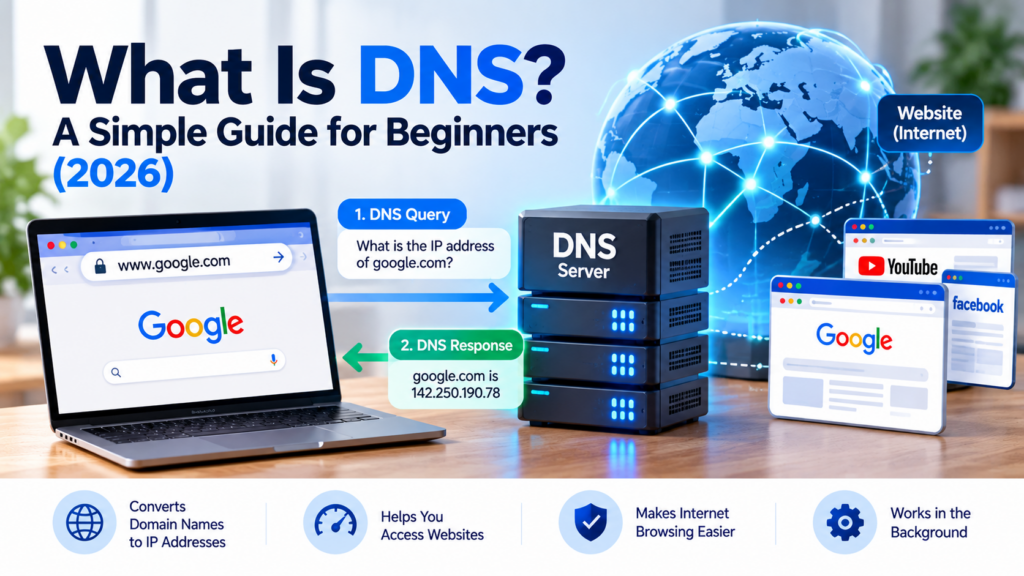
Have you ever wondered what happens when you type a website address such as Google.com into your web browser?
You enter the website name, press Enter, and the page appears. But how does your computer find the correct server?
The answer is DNS (Domain Name System).
DNS is one of the most important parts of the internet. It helps your computer find the IP address associated with a domain name, allowing your browser to connect to the appropriate server.
In this beginner-friendly guide, you’ll learn what DNS is, how it works, the difference between DNS and an IP address, and how to troubleshoot common DNS problems in Windows 11.
What Is DNS?
DNS stands for Domain Name System.
It translates domain names, such as google.com, into IP addresses that computers use to communicate across networks.
Remembering a website name is much easier than remembering its numerical IP address. DNS makes browsing the internet more convenient by allowing you to use familiar domain names.
For example:
- Domain name:
example.com - IP address: An address associated with the server hosting the website.
The actual IP address can change, and a domain can point to multiple IP addresses. DNS provides the records that help clients locate the appropriate destination.
Think of DNS as the internet’s phone book: you look up a name to find the corresponding address.
How Does DNS Work?
Let’s understand DNS using a simple example.
Imagine you want to visit a website called example.com.
Step 1: Enter the Website Address
You type example.com into your browser’s address bar and press Enter.
Step 2: Check Available DNS Information
Your computer and browser may already have the DNS result stored in a cache. If a valid cached result is available, the lookup may not need to start from scratch.
Step 3: Contact a DNS Resolver
If the answer is not already available, your device sends a DNS query to a DNS resolver, commonly provided by your internet service provider or configured through another DNS service.
The resolver looks for the information needed to find the domain’s IP address.
Step 4: Find the Appropriate DNS Records
If necessary, the resolver consults other DNS servers, including root servers, top-level domain servers, and authoritative name servers.
The authoritative server provides the relevant DNS records for the domain.
Step 5: Return the Result
The resolver returns the result to your device and may cache it for a period determined by the record’s TTL (Time to Live).
Step 6: Connect to the Website
Your browser can now use the resolved IP address to connect to the website’s server.
The browser then requests the webpage and displays the content returned by the server.
Important: DNS helps your device find the destination. It does not itself download the webpage or guarantee that the website is available.
What Are the Main Types of DNS Servers?
Different DNS servers have different responsibilities.
1. DNS Resolver
A DNS resolver receives queries from client devices and helps find the requested DNS information.
It may use cached results or query other DNS servers to obtain an answer.
2. Root DNS Server
Root DNS servers help resolvers discover which DNS servers are responsible for a particular top-level domain, such as .com or .org.
They do not normally provide the final IP address of the requested website.
3. TLD DNS Server
A top-level domain (TLD) server helps direct resolvers toward the authoritative name servers for a domain.
For example, a .com TLD server handles information related to domains under .com.
4. Authoritative DNS Server
An authoritative DNS server provides the DNS records for domains it manages.
These records may contain IP addresses, mail-server information, and other domain configuration details.
What Is the Difference Between DNS and an IP Address?
DNS and IP addresses are related, but they serve different purposes.
| Feature | DNS | IP Address |
|---|---|---|
| Meaning | Domain Name System | Internet Protocol address |
| Main purpose | Helps find network addresses using domain names | Identifies a network interface or destination |
| Example | Resolves example.com | An IPv4 or IPv6 address |
| Role | Looks up DNS records | Helps devices communicate across IP networks |
| Easy comparison | Like looking up a contact name | Like the address associated with that contact |
For example, when you open a website, DNS can help your browser discover an IP address. Your device then uses network protocols to communicate with the destination.
To learn how to find your own computer’s address, read our guide: How to Find Your IP Address in Windows 11.
What Happens When DNS Stops Working?
If DNS is not working correctly, your internet connection may appear to be broken even when your device is connected to the network.
You may experience problems such as:
- Websites failing to open by domain name.
- Browser messages indicating that a server or domain cannot be found.
- Some websites working while others fail.
- Applications having difficulty connecting to online services.
These symptoms can also have other causes, so DNS is only one possible explanation.
How to Fix Common DNS Problems in Windows 11
Try these troubleshooting steps if you suspect a DNS problem.
Method 1: Check Your Internet Connection
First, check whether your computer is connected to Wi-Fi or Ethernet.
Try opening a few different websites. If none work, restart your router if appropriate and check whether other devices can access the internet.
For more help, read our guide: How to Fix Wi-Fi Connection Problems: A Step-by-Step Guide.
Method 2: Flush the DNS Cache
Windows stores DNS results temporarily to reduce repeated lookups.
If a cached result is outdated or incorrect, flushing the DNS cache may help.
Follow these steps:
- Press Windows + S.
- Type
cmd. - Open Command Prompt.
- Run the following command:
ipconfig /flushdns
- Press Enter.
Windows should display a message confirming that the DNS Resolver Cache was successfully flushed.
This clears the local DNS resolver cache. It does not repair every possible DNS problem.
Method 3: Check DNS Resolution Using Command Prompt
Open Command Prompt and run:
nslookup example.com
This command asks a DNS server to resolve the domain example.com.
If it returns an address, DNS resolution is working for that query. If it fails, the error message can help narrow down the issue.
Try another domain as well, because a problem with one domain does not necessarily indicate that your entire DNS configuration is broken.
Method 4: Restart Your Router
If multiple devices on the same network experience DNS problems, your router or its DNS configuration may be involved.
If you are authorised to manage the network:
- Save your work.
- Restart your router using its normal procedure.
- Wait for the internet connection to return.
- Test the affected websites again.
If the issue continues, contact your internet service provider or network administrator.
What Is a Public DNS Server?
A public DNS service allows you to use a DNS resolver provided by an organisation other than your internet service provider.
Some users choose public DNS services for reliability, troubleshooting, privacy features, or filtering options.
Two widely known examples are Google Public DNS and Cloudflare DNS.
Google Public DNS
Google Public DNS provides publicly accessible DNS resolvers.
Its commonly used IPv4 addresses are:
- Primary:
8.8.8.8 - Secondary:
8.8.4.4
Official website: https://developers.google.com/speed/public-dns
Cloudflare DNS
Cloudflare provides a public DNS resolver that is commonly used for general-purpose DNS resolution.
Its commonly used IPv4 addresses are:
- Primary:
1.1.1.1 - Secondary:
1.0.0.1
Official website: https://1.1.1.1/
Both services also support IPv6. Check their official documentation for current configuration instructions and privacy details.
Important: Changing DNS providers does not automatically make your internet connection faster or more secure. Performance depends on your network and the service you choose. Your DNS provider may also be able to observe DNS queries, so review its privacy policy before making a decision.
Should You Change Your DNS Settings?
For most beginners, the DNS settings provided automatically by their router or internet service provider are sufficient.
Consider changing your DNS settings only if you have a specific reason, such as troubleshooting a DNS issue or using a service with features you prefer.
Before making changes, record your existing settings so you can restore them if necessary.
If your computer belongs to a company or managed network, ask your administrator before changing its DNS configuration.
Frequently Asked Questions
1. What does DNS stand for?
DNS stands for Domain Name System. It helps devices find the network addresses associated with domain names.
2. Does DNS affect internet speed?
DNS can affect how quickly a browser obtains the address needed to connect to a website. However, it does not directly determine your overall internet speed, which also depends on your connection, network congestion, server performance, and other factors.
3. Is DNS the same as an IP address?
No. DNS helps resolve domain names to network information, while an IP address identifies a network interface or destination used for communication.
4. Is public DNS free?
Google Public DNS and Cloudflare’s public DNS resolver offer free DNS resolution services. Their features, policies, and terms may differ, so consult their official documentation.
5. Can DNS problems prevent websites from opening?
Yes. If a domain name cannot be resolved correctly, your browser may be unable to connect to the website using that name. However, website outages, network failures, and other problems can produce similar symptoms.
6. What does ipconfig /flushdns do?
It clears the local Windows DNS resolver cache. Windows can then obtain fresh DNS results when needed.
7. Is changing DNS safe?
Changing DNS settings is a normal networking configuration option, but you should choose a provider you trust and understand any filtering or privacy implications. Record your existing settings before changing them.
Conclusion
DNS makes the internet easier to use by helping computers find network addresses through familiar domain names.
Understanding DNS can help you troubleshoot website access problems, learn networking fundamentals, and manage your home or office network more confidently.
If you are beginning your networking journey, start by learning about IP addresses, routers, switches, and DNS. These concepts work together to help devices communicate across networks.
Explore more beginner-friendly networking guides on TechPathGuide:
- Computer Networking for Beginners: A Simple Guide to Network Basics
- Router vs Switch vs Modem: What’s the Difference?
- How to Fix Wi-Fi Connection Problems: A Step-by-Step Guide
- How to Find Your IP Address in Windows 11