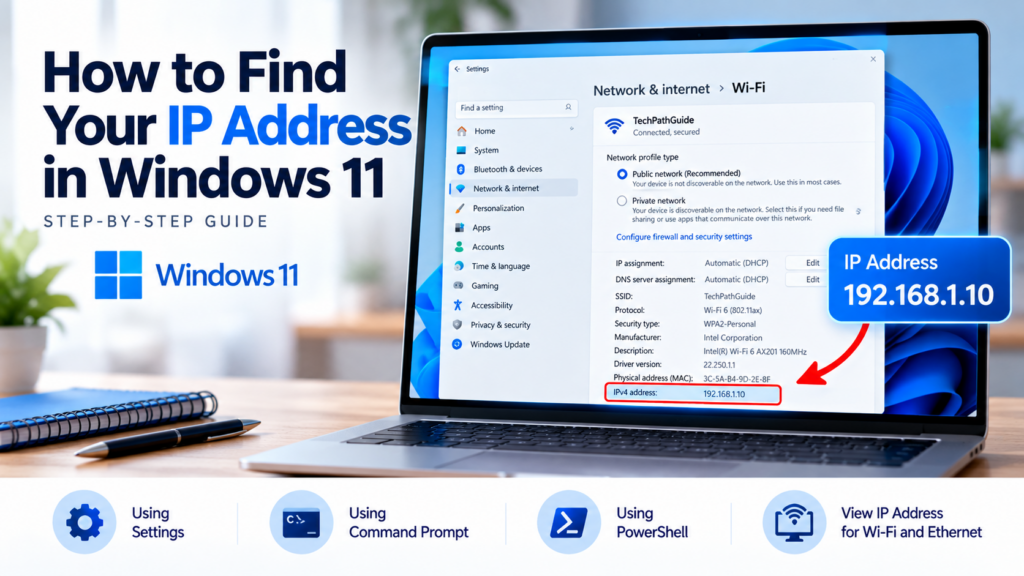
Have you ever needed your computer’s IP address to troubleshoot an internet connection, connect to another device, configure a router, or solve a networking problem?
Finding your IP address in Windows 11 is simple. You don’t need advanced technical knowledge or additional software.
In this guide, you’ll learn three easy methods to find your IP address, understand the difference between private and public IP addresses, and troubleshoot common networking problems.
What Is an IP Address?
An IP address (Internet Protocol address) is a numerical address used to identify a device on an IP network.
Your computer may have different IP addresses depending on how it connects to a network.
Private IP address: Used to communicate with devices on your local network, such as your router, printer, or another computer.
Public IP address: The address through which your network is generally identified on the internet. Your internet service provider typically assigns it to your router or connection.
For example, a private IPv4 address might look like 192.168.1.10.
Your actual address will depend on your network configuration.
Method 1: Find Your IP Address Using Windows Settings
This is the easiest method for most Windows 11 users.
Step 1: Open Settings
Press Windows + I on your keyboard to open Windows Settings.
Step 2: Open Network Settings
Select Network & internet from the left-hand menu.
Step 3: Select Your Connection
Choose the connection you are currently using:
- Wi-Fi: If your computer connects wirelessly.
- Ethernet: If your computer connects using a network cable.
Step 4: Find Your IP Address
Open your active connection’s properties and scroll to the network details.
Look for IPv4 address.
You should see an address similar to 192.168.1.10, although your actual address may be different.
Tip: If you need your local IPv6 address, look for the IPv6 information in the same network details.
Method 2: Find Your IP Address Using Command Prompt
If you prefer using commands, Windows Command Prompt provides a quick way to find your network information.
Step 1: Open Command Prompt
- Press Windows + S.
- Type
cmd. - Open Command Prompt.
Step 2: Run the Command
Type the following command and press Enter:
ipconfig
Step 3: Identify Your Active Connection
Look for the network adapter you are currently using.
For a wireless connection, find the Wireless LAN adapter Wi-Fi section.
For a wired connection, look for the relevant Ethernet adapter section.
Find the line labelled:
IPv4 Address
For example:
IPv4 Address. . . . . . : 192.168.1.10
The number shown is your computer’s private IPv4 address for that network adapter.
Important: If you see multiple adapters, such as virtual machines or VPN connections, make sure you select the adapter used for your active network connection.
Method 3: Find Your Public IP Address
Your private IP address is different from your public IP address.
To find your public IP address:
- Open your web browser.
- Search for What is my IP address?
- Check the public IP address displayed by a reputable IP-checking service.
The result generally shows the public address through which your internet connection is seen.
Your public IP address may be shared by multiple devices on your home or office network. Some internet providers also use carrier-grade NAT, so the address shown by an online service may not be assigned directly to your router.
Privacy tip: Avoid posting your public IP address publicly or sharing network details with people you do not trust.
Private IP Address vs Public IP Address
| Feature | Private IP Address | Public IP Address |
|---|---|---|
| Main purpose | Communication within a local network | Identifies your network connection on the internet |
| Example | 192.168.1.10 | Depends on your internet connection |
| Assigned by | Usually your router or network administrator | Usually your ISP or network provider |
| Used for | Local devices, printers and file sharing | Internet communication |
| Can multiple devices share it? | Each device normally has its own address on the same network | Multiple devices can share a public address through NAT |
Common IP Address Problems and Solutions
1. My Computer Shows an IP Address Starting With 169.254
An address beginning with 169.254 can indicate that Windows did not obtain an IPv4 address from a DHCP server.
Try these steps:
- Check whether your Wi-Fi or Ethernet connection is active.
- Restart your router if you are authorised to do so.
- Disconnect and reconnect to the network.
- If the problem continues, contact your network administrator or internet service provider.
You can also open Command Prompt and run:
ipconfig /release
Then run:
ipconfig /renew
These commands apply to DHCP-configured IPv4 connections. Save your work first, and be aware that renewing the address may temporarily interrupt the connection.
2. I Cannot Find an IPv4 Address
Check whether you selected the correct network adapter.
If Wi-Fi is disconnected, Windows may not display an active Wi-Fi IPv4 address. If you use Ethernet, check the Ethernet adapter instead.
3. My IP Address Keeps Changing
Your router may assign private IP addresses dynamically using DHCP.
This is normal for many home and office networks. If a device needs a consistent local address, you may be able to configure a DHCP reservation on your router.
Avoid changing IP settings without understanding your network configuration, because incorrect settings can interrupt connectivity.
4. My Public IP Address Is Different From My Private IP Address
This is expected on most home networks.
Your router typically uses Network Address Translation (NAT) to allow multiple devices to access the internet through one public IP address.
Frequently Asked Questions
1. How do I find my IP address quickly in Windows 11?
Press Windows + R, type cmd, press Enter, and then run ipconfig. Find the IPv4 address under your active network adapter.
2. Is my IP address the same as my Wi-Fi password?
No. Your IP address identifies a device or network connection. Your Wi-Fi password is used to authenticate devices connecting to a secured wireless network.