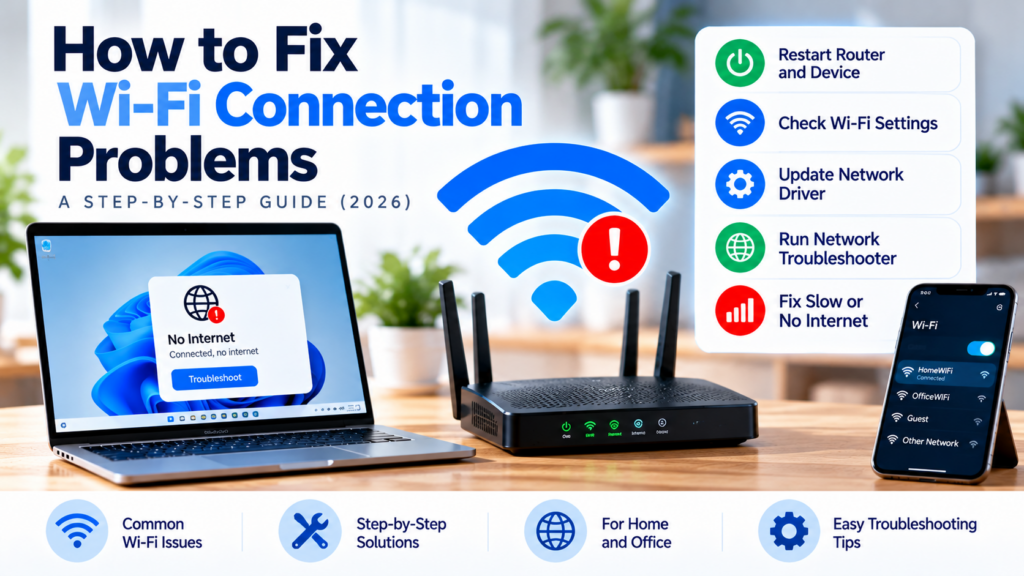
Is your Wi-Fi connected but not working? Are web pages loading slowly, or does your internet connection keep disconnecting?
Wi-Fi problems can be frustrating, especially when you need the internet for work, online meetings, studying, or entertainment.
Fortunately, many common Wi-Fi problems can be solved without calling a technician.
In this guide, we will explain how to identify and fix common Wi-Fi connection problems step by step.
1. Check Whether Your Internet Connection Is Down
Before changing any settings, find out whether the problem is with your Wi-Fi network or your internet service provider (ISP).
Follow these steps:
- Connect your phone or computer to your Wi-Fi network.
- Open a website that you normally use.
- Try connecting another device to the same Wi-Fi network.
- If several devices cannot access the internet, check your router or modem status.
- Contact your ISP or check its service-status information if the connection appears to be down.
If only one device has a problem, the issue may be related to that device rather than your entire internet connection.
Tip: If your Wi-Fi network is working but no device can access the internet, restarting your equipment may help. However, an ISP outage or account issue may require your provider’s assistance.
2. Restart Your Router and Modem
Restarting your networking equipment can resolve temporary connection problems.
How to Restart Your Equipment
- Save your work and disconnect any activity that requires an uninterrupted internet connection.
- Turn off your router and modem or internet access device.
- Unplug the power cables if the manufacturer permits this.
- Wait approximately 30 seconds.
- Power on the modem or internet access device first, if it is separate.
- Wait for it to establish its connection.
- Power on the router if it is a separate device.
- Wait for the Wi-Fi network to become available.
- Test the connection again.
Some fibre connections use an optical network terminal (ONT), while others use an integrated gateway. Follow your equipment manufacturer’s instructions.
Important: Restarting is different from factory resetting. Do not press and hold the Reset button unless you intend to restore factory settings and understand how to reconfigure the device.
3. Fix Wi-Fi Connected but No Internet
Sometimes your phone or computer shows that it is connected to Wi-Fi, but websites do not open.
This means the device may be connected to the local wireless network even though internet access is unavailable.
Try These Solutions
Solution 1: Test another device
Connect another phone or computer to the same Wi-Fi network.
If both devices fail, check the router, access device, and ISP connection.
If only one device fails, troubleshoot that device.
Solution 2: Turn Wi-Fi off and on
Disable Wi-Fi on the affected device, wait a few seconds, and enable it again.
Solution 3: Forget and reconnect to the network
On your phone or computer:
- Open Wi-Fi settings.
- Select your network.
- Choose the option to forget or remove the network.
- Connect again using the correct password.
The exact menu names depend on your device and operating system.
Solution 4: Check your internet service
If multiple devices cannot access the internet after restarting your equipment, contact your ISP to check for an outage or connection problem.
4. Improve Slow Wi-Fi Speed
Slow Wi-Fi can be caused by weak signals, interference, network congestion, older equipment, or a slow internet connection.
Try these steps to identify the cause.
Move Closer to the Router
Walls, floors, furniture, and other obstacles can weaken wireless signals.
Move closer to the router and test the connection again.
If the speed improves significantly, your problem may be related to Wi-Fi coverage.
Reduce Network Congestion
Many devices sharing the same network can affect performance, particularly when several are streaming video, downloading large files, or running backups.
Pause unnecessary downloads and test the connection again.
Test Your Internet Speed
Use a reputable internet speed-test service to measure download speed, upload speed, and latency.
For a meaningful comparison:
- Test near the router.
- Use the same device for each test.
- Repeat the test at different times.
- Compare the results with your ISP plan.
For a wired comparison, connect a computer to the router using Ethernet if possible.
If wired and wireless speeds are both consistently low, the issue may involve your internet service or networking equipment.
If wired speeds are good but Wi-Fi speeds are poor, investigate wireless coverage, interference, and router settings.
5. Fix Weak Wi-Fi Signals
If Wi-Fi works near the router but becomes unreliable in another room, your home or office may have a coverage problem.
Place Your Router Correctly
For better coverage:
- Place the router in a central location when practical.
- Keep it elevated and away from the floor.
- Avoid hiding it inside a closed cabinet.
- Keep it away from large metal objects.
- Avoid placing it directly beside equipment that may cause wireless interference.
The best location depends on the building layout and construction materials.
Consider a Mesh Wi-Fi System
A mesh Wi-Fi system uses multiple units to provide wireless coverage across a larger area.
It may be useful for larger homes or offices where a single router cannot provide reliable coverage.
Consider an Access Point
A wireless access point can extend network coverage when connected to the existing network, ideally using Ethernet.
For long-term reliability, a wired access point or wired mesh backhaul can be preferable when running a cable is practical.
Buying tip: Before purchasing a Wi-Fi extender, mesh system, or access point, identify the area where coverage is poor and check whether your existing router supports the solution you are considering.
6. Fix Frequent Wi-Fi Disconnections
If your Wi-Fi connection keeps dropping, the cause may be interference, outdated firmware, poor coverage, or a problem with the device or router.
Try the following:
- Restart the affected device and router.
- Check whether the problem affects one device or all devices.
- Move closer to the router and test again.
- Install router firmware updates from the manufacturer’s official instructions.
- Check whether the router is overheating or located in a poorly ventilated space.
- Test the connection using Ethernet, if possible.
- Contact your ISP if the internet connection continues to disconnect.
If only one device disconnects, check that device’s Wi-Fi settings, operating-system updates, and wireless drivers where applicable.
Avoid changing several advanced router settings at once. Make one change at a time so you can identify what fixes the problem.
7. Understand the 2.4 GHz and 5 GHz Wi-Fi Bands
Many modern routers support both 2.4 GHz and 5 GHz Wi-Fi bands.
Each has different characteristics.
2.4 GHz Wi-Fi
- Often provides better coverage through obstacles.
- Supports a wide range of devices.
- Can experience more interference because many devices use this band.
5 GHz Wi-Fi
- Can offer higher speeds under suitable conditions.
- Often has more available channels than 2.4 GHz, depending on the region.
- Usually has a shorter practical range through walls than 2.4 GHz.
Some newer routers also support 6 GHz Wi-Fi, subject to device compatibility and local regulations.
Which Band Should You Use?
Choose 2.4 GHz when coverage and compatibility are priorities.
Choose 5 GHz when you are reasonably close to the router and want higher speeds for activities such as video streaming or large downloads.
Actual performance depends on your router, client device, distance, interference, and surrounding environment.
8. Check Your Wi-Fi Password and Security Settings
If a device cannot connect to Wi-Fi, verify that you are using the correct network name and password.
Also check whether the router’s security settings are compatible with your device.
For better security:
- Use a strong, unique Wi-Fi password.
- Prefer WPA3 or WPA2-AES where supported.
- Keep router firmware updated.
- Change default administrator credentials.
- Disable WPS if you do not need it and your router supports disabling it.
- Use a guest network for visitors when available.
Do not share your router’s administrator password publicly.
If you change the Wi-Fi password, you may need to reconnect your phones, computers, televisions, and other wireless devices.
9. Check Whether Your Router Needs an Upgrade
Sometimes the router itself limits network