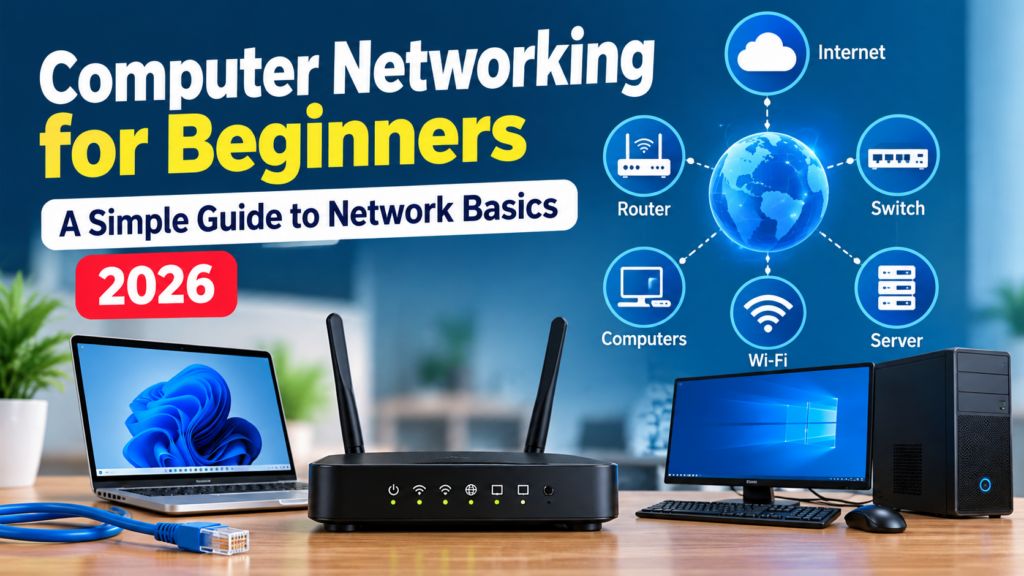
Computer networking allows computers, smartphones, printers, and other devices to communicate with one another. It helps us share files, access the internet, connect to business applications, and work efficiently.
Whether you are a student, office worker, small business owner, or someone interested in IT, understanding networking basics can help you solve common connectivity problems and make better technology decisions.
In this guide, we will explain the fundamentals of computer networking in simple language.
1. What Is Computer Networking?
Computer networking is the connection of two or more devices so they can exchange information and share resources.
For example, imagine an office with five computers connected to one Wi-Fi router. All five computers can access the internet through the same connection. They may also share printers and other network resources.
Common examples of computer networking include:
- Connecting your laptop to Wi-Fi.
- Sharing files between computers.
- Connecting office computers to a shared printer.
- Accessing a company server.
- Connecting security cameras to a local network.
2. What Is a Network?
A network is a group of connected devices that communicate with each other.
Networks can be small, such as a home Wi-Fi network, or large, such as the network connecting offices across different countries.
Two common network types are:
Local Area Network (LAN): Connects devices within a limited area, such as a home, office, school, or factory.
Wide Area Network (WAN): Connects networks across larger geographical areas. The internet is the most familiar example of a global network.
3. What Is a Router?
A router connects different networks and forwards data between them.
In a typical home or small office, the router connects your local network to the internet. Many home routers also provide Wi-Fi, allowing wireless devices to connect.
A router can help you:
- Connect multiple devices to the internet.
- Create a Wi-Fi network.
- Manage network access.
- Connect separate networks.
Example: When you open a website on your laptop, your router forwards the relevant network traffic toward the internet.
4. What Is a Network Switch?
A network switch connects multiple wired devices within a local network.
For example, a small office may have ten computers, a network printer, and a server. An Ethernet switch can connect these devices to the same local network.
A switch is useful when:
- You need more Ethernet ports.
- You want reliable wired connections.
- You are setting up an office network.
- You need to connect computers, printers, and servers.
Router vs. switch: A router connects networks, while a switch primarily connects devices within a local network. Some home networking equipment combines router, switch, and Wi-Fi functions in one device.
5. What Is Wi-Fi?
Wi-Fi is a wireless networking technology that allows compatible devices to connect to a network without an Ethernet cable.
Wi-Fi is commonly used by:
- Smartphones.
- Laptops.
- Smart televisions.
- Wireless printers.
- Smart home devices.
Wi-Fi performance depends on several factors, including router capability, distance, walls, interference, and the number of connected devices.
Tip: If your Wi-Fi signal is weak, try moving closer to the router and checking whether other devices experience the same problem.
6. What Is an IP Address?
An Internet Protocol (IP) address identifies a network interface so that devices can communicate using IP networks.
Two common versions are IPv4 and IPv6.
An IPv4 address looks like this:
192.168.1.10
In a home network, a router often assigns private IP addresses to connected devices automatically using DHCP.
Understanding IP addresses can help you troubleshoot network connection problems.
7. What Is DNS?
DNS stands for Domain Name System.
It helps translate human-readable domain names, such as example.com, into IP addresses used by networked systems.
Without DNS, users would have to remember numerical IP addresses to access many internet services.
Example: When you enter a website’s domain name in your browser, DNS helps your device find the corresponding destination.
If websites fail to load even though your internet connection appears active, DNS may be one possible cause.
8. What Is DHCP?
DHCP stands for Dynamic Host Configuration Protocol.
It automatically provides devices with network configuration information, commonly including an IP address, subnet mask, default gateway, and DNS server information.
Without DHCP, a network administrator might need to configure these settings manually on each device.
DHCP is especially useful in homes, offices, and schools where many devices connect to the network.
9. What Is Ethernet?
Ethernet is a widely used technology for wired local area networks.
Ethernet connections commonly use network cables with RJ45-style connectors.
Compared with Wi-Fi, a wired Ethernet connection can provide more consistent performance in suitable conditions. It is often preferred for desktop computers, servers, network printers, and other stationary equipment.
10. Common Networking Problems and Solutions
Here are a few common problems and basic troubleshooting steps.
Problem: Wi-Fi is connected, but the internet is not working.
- Check whether other devices can access the internet.
- Check the router and modem status lights.
- Restart the router if appropriate.
- Contact your internet service provider if the connection remains unavailable.
Problem: Wi-Fi signal is weak.
- Move closer to the router.
- Place the router in a more central, open location.
- Reduce physical obstructions where possible.
- Consider a suitable access point or mesh Wi-Fi system if coverage remains poor.
Problem: A computer cannot connect to the network.
- Check the Ethernet cable or Wi-Fi connection.
- Confirm that airplane mode is disabled.
- Restart the network adapter or computer.
- Check the device’s IP configuration.
- Contact your network administrator if the issue continues.
Problem: Websites are not opening.
- Try opening another website.
- Check whether the internet connection is working.
- Check DNS settings if you have the necessary technical knowledge.
- Avoid changing network settings without understanding their effects.
11. Basic Networking Tools for Beginners
You can learn a lot about networking using tools already included with your computer.
Ping: Tests whether a destination responds to network requests and reports basic timing information.
ipconfig (Windows): Displays IP configuration details. The command ipconfig /all provides additional information.
tracert (Windows): Shows the network path toward a destination.
nslookup: Helps investigate DNS name resolution.
For example, open Command Prompt in Windows and run:
ipconfig
This displays basic network configuration information for your computer.
12. Is Computer Networking a Good Skill to Learn?
Computer networking is useful for IT support, system administration, cybersecurity, cloud computing, and network engineering.
Beginners can start by learning:
- LAN and WAN concepts.
- Routers, switches, and access points.
- IP addressing and subnet basics.
- DNS and DHCP.
- Network troubleshooting.
- Basic network security.
Practice in a home lab or a networking simulator can help you develop practical skills.
Conclusion
Computer networking is the foundation of communication between computers and other connected devices. Understanding routers, switches, Wi-Fi, IP addresses, DNS, and DHCP makes it easier to use technology and troubleshoot common problems.
Start with the basics, practise using simple networking commands, and gradually move toward more advanced topics.
At TechPathGuide, we aim to make software and networking easier to understand with practical, beginner-friendly tutorials.
Disclaimer: Networking commands and configuration changes can affect connectivity. If you are troubleshooting a business network, consult your network administrator before changing important settings.